Edit Selected Area
Paint over part of the photograph and describe — or photograph — what should be there instead.
- Cost
- 4 credits
- Takes
- A photograph
- Returns
- One image, or several variants to choose between
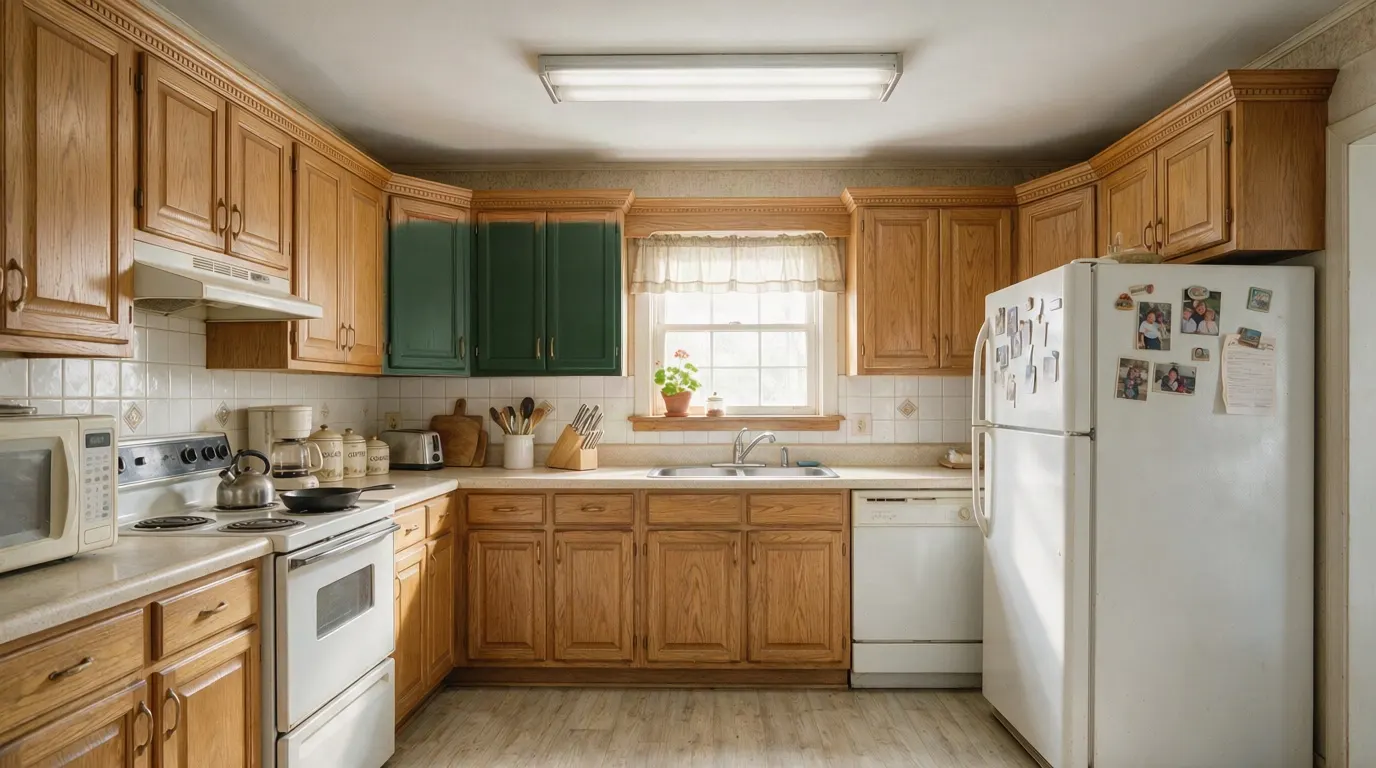 After
After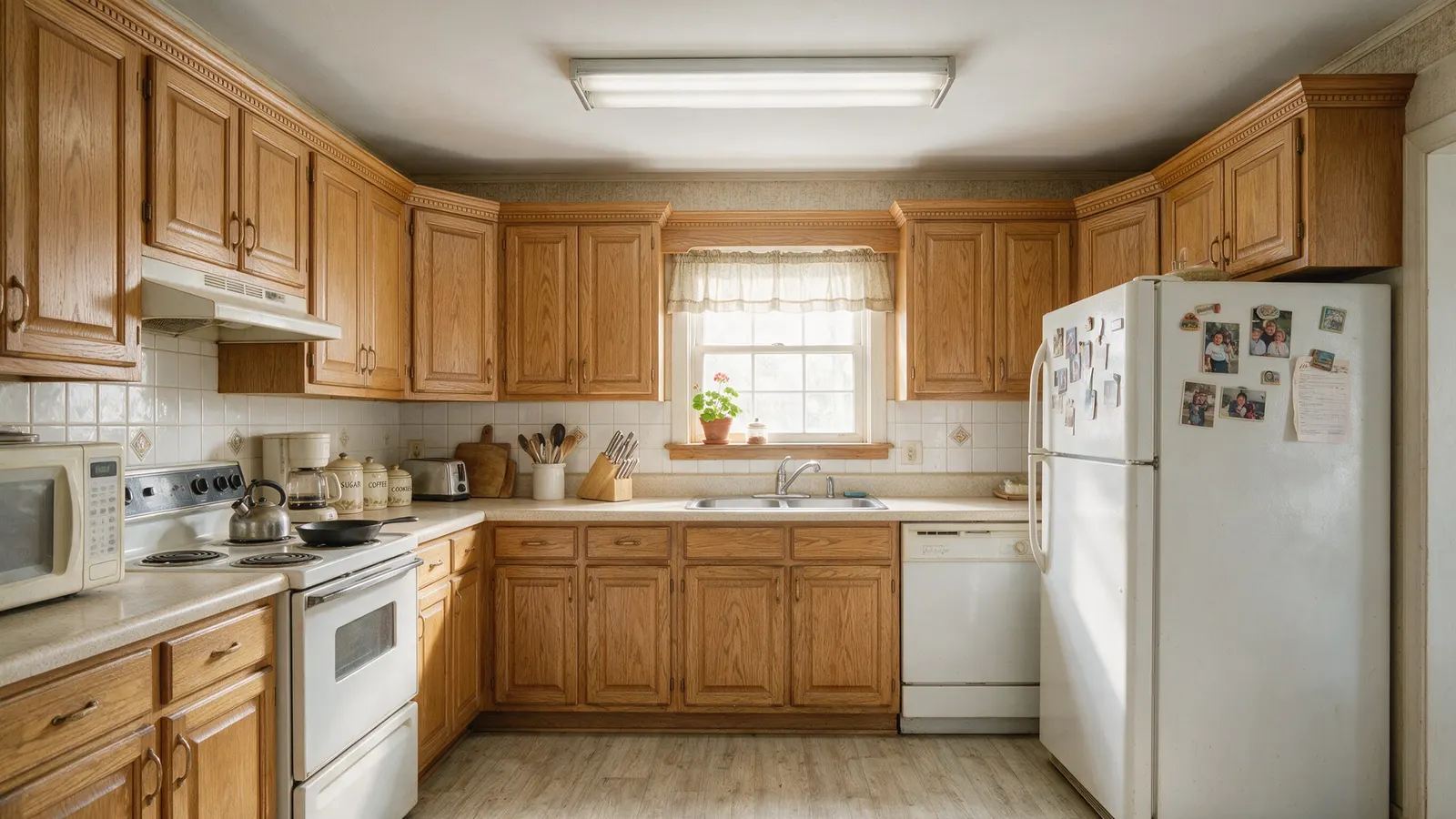 Before
One bank of cabinets painted over and answered in a sentence. The oak beside it is untouched.
4cGenerated by this product in August 2026 · template edit_selected_area v2 · source: generated with seedream 5 pro
What it leaves alone
Walls, windows, doors, ceiling height and the camera position stay exactly as photographed.
Carried by the operation’s prompt template, whose id and version are recorded on every job — so a result can be explained, or reproduced, long after it was made.
What you choose
Every option below is offered by this operation in the studio, and the illustrated ones are shown as photographs there rather than named in a dropdown.
What should be there
Typed in, not picked from a list.
Quality4 options
- Better · up to 2.1 MP
- Much better · up to 3.7 MP
- Excellent · up to 8.3 MP
- Incredible · up to 8.3 MP
How it works
- 01
Upload the photograph
A straight-on shot of the room, well lit. Nothing else is needed — no 3D model, no measurements, no site visit.
- 02
Set the direction
Choose what should be there and quality. Add a sentence of your own if something specific matters.
- 03
Generate
Edit Selected Area costs 4 credits at these settings, and the price is on the button before you press it. One image, or several variants to choose between.
Questions
- What does Edit Selected Area cost?
- 4 credits at the default settings. Credits are reserved before the model runs and returned in full on every path that does not deliver an image, so a failed generation costs nothing.
- What do I need to upload for Edit Selected Area?
- A straight-on shot of the room, well lit. A photograph taken on a phone is enough — there is no 3D model, measurement or site visit involved.
- Does Edit Selected Area change anything I did not ask it to?
- Walls, windows, doors, ceiling height and the camera position stay exactly as photographed. That constraint is written into the operation's prompt template, and the template's id and version are recorded on every job, so any result can be explained or reproduced later.
Also in Removal
Try it on a photograph you already have.
One upload is enough to see whether this works on your kind of photograph. The free plan needs no card.
Start free